Introduction
This guide provides a detailed step-by-step process for conducting asset mass addition and posting to fixed assets in Oracle Cloud. Follow these steps to ensure accurate capitalization and accounting of assets.
Blog shows process of conducting Asset Mass Addition and posting to Fixed Assets in the Oracle Cloud. These steps will help you navigate through the necessary actions efficiently.
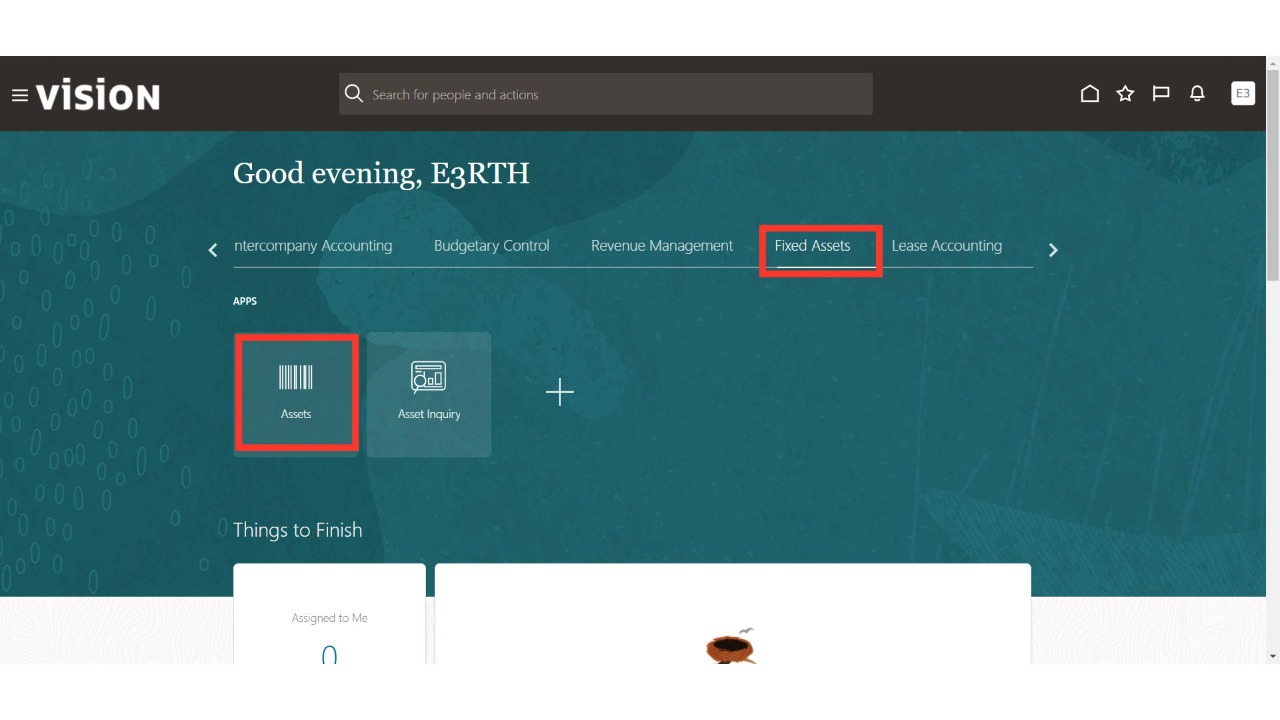
Click on the 'Assets' sub-menu under the 'Fixed Assets' menu from the Oracle Home page.
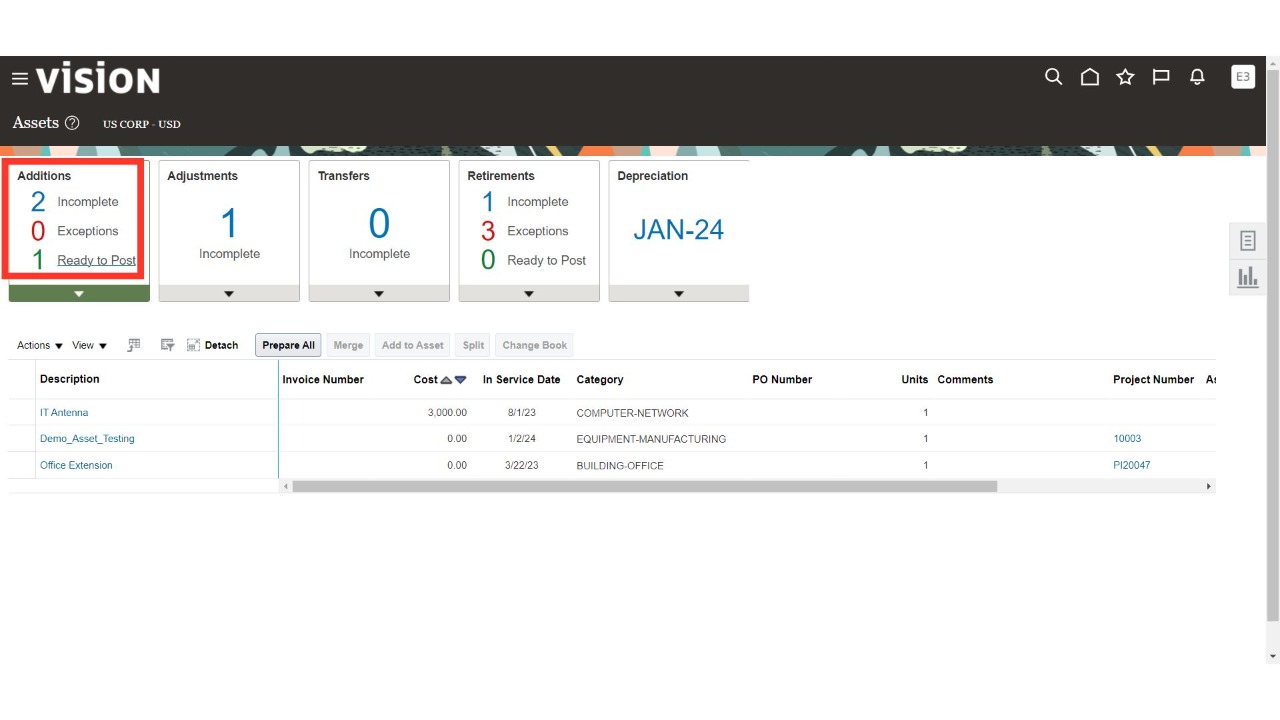
Transferred assets will appear in the 'Incomplete' section if any mandatory details, such as location or category, are missing. If all mandatory details are filled at the project level, the assets will appear in the 'Ready to Post'
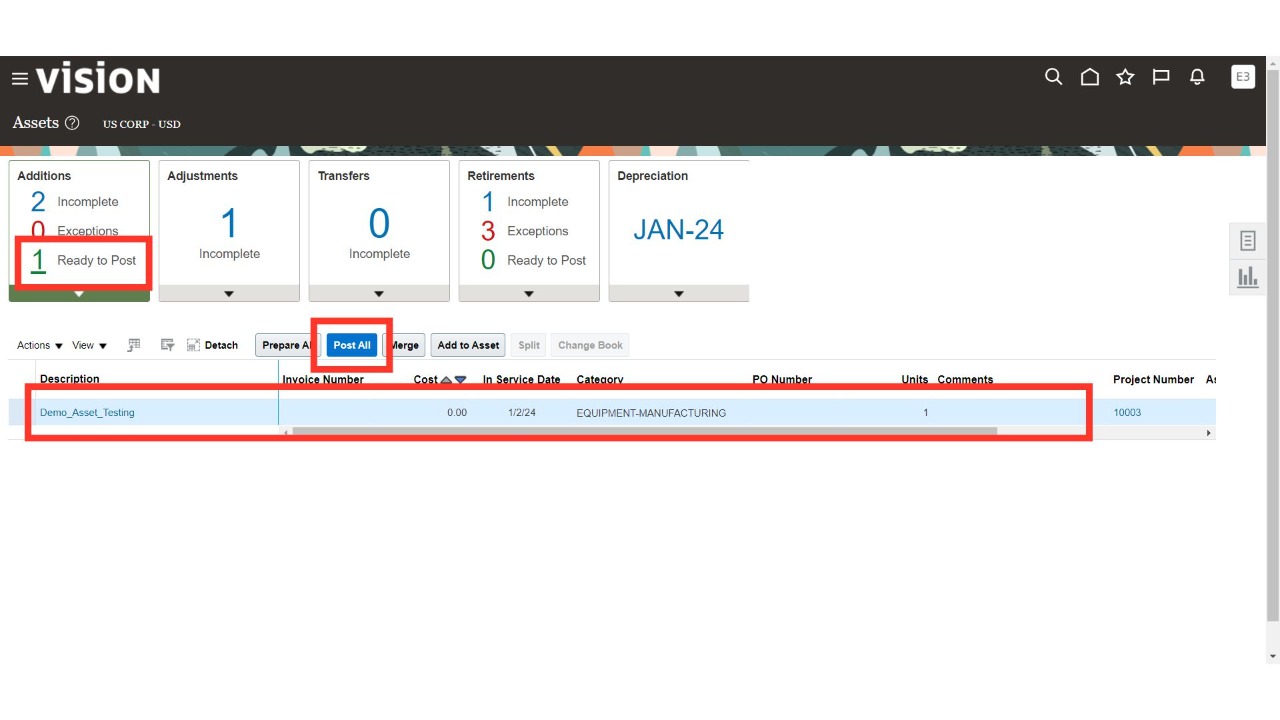
Click on the 'Ready to Post' section to view all the assets that are ready for capitalization. Select the asset line you want to capitalize within the Fixed Assets module and initiate the capitalization process by clicking on the 'Post All' button.
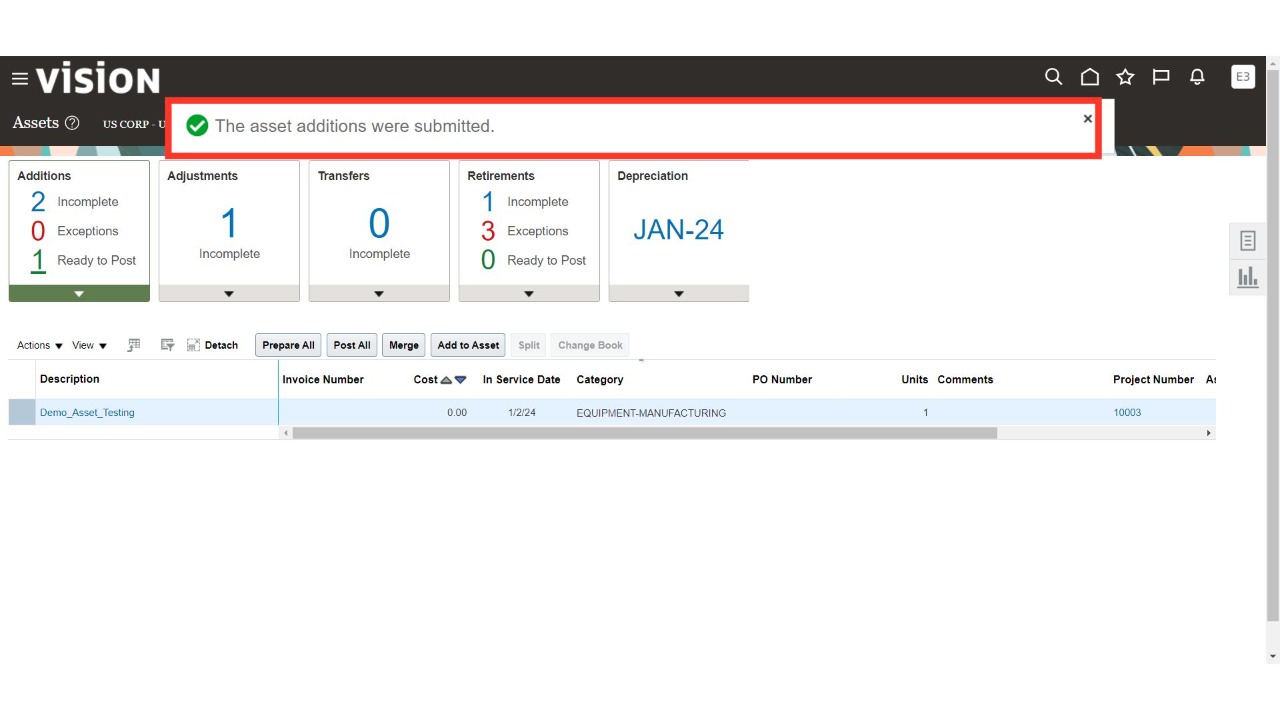
A notification will pop up confirming that Oracle has initiated a scheduled process in the background to post Fixed Asset lines for capitalization.
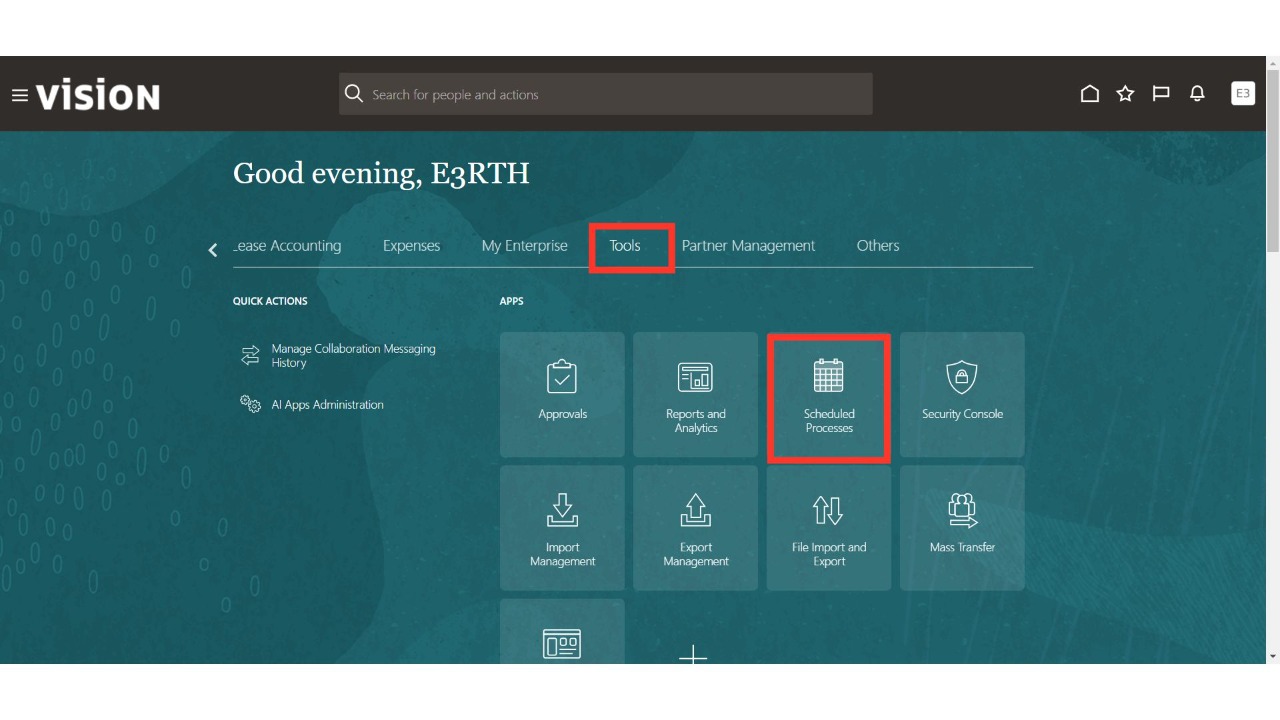
Click on the 'Schedule Processes' sub-menu under the 'Tools' menu to check the process status.
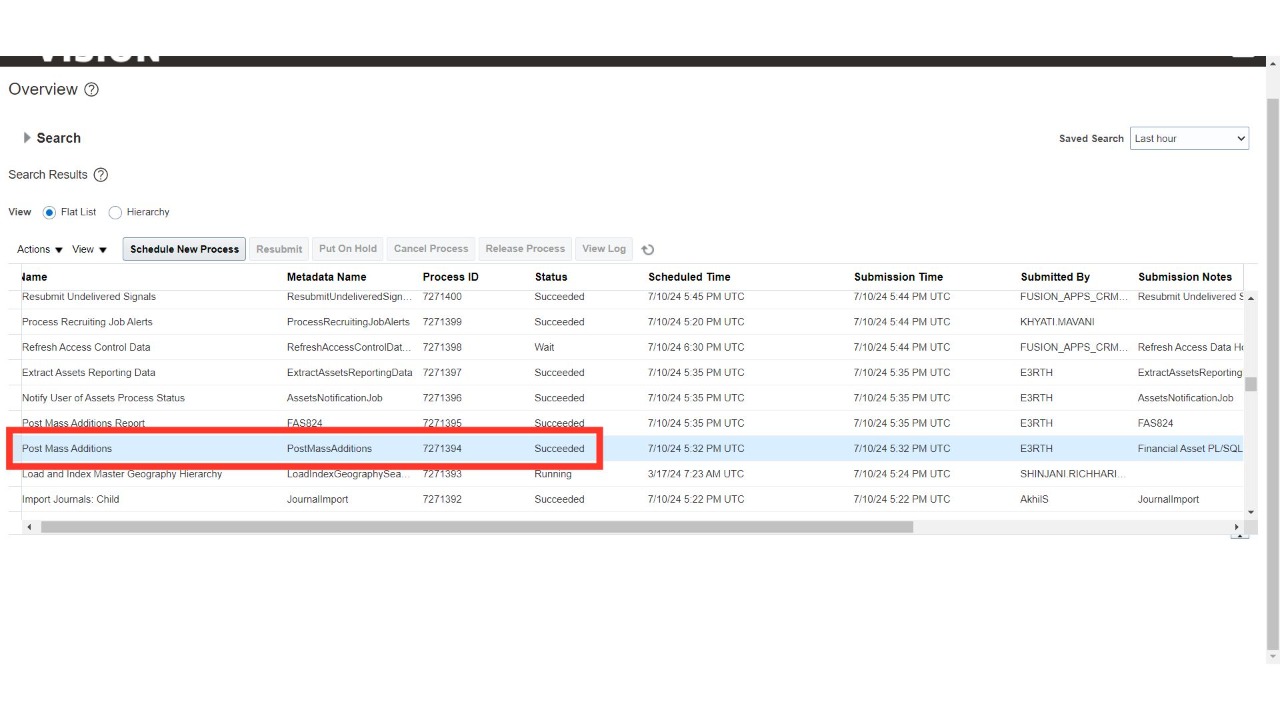
Keep clicking the ‘Refresh’ button until the process status shows as ‘Succeeded.’ Once successful, navigate back to the Oracle Home page.
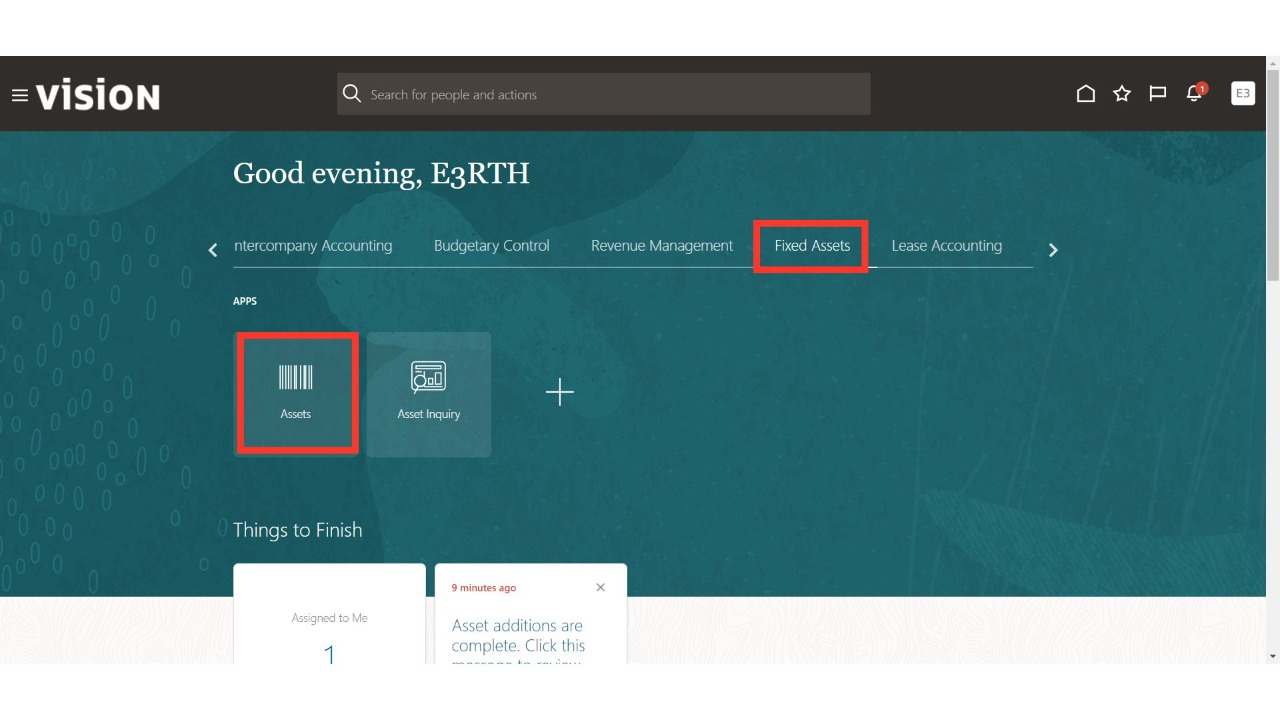
Navigate to the 'Assets' sub-menu under the 'Fixed Assets' menu from the Oracle Home page.
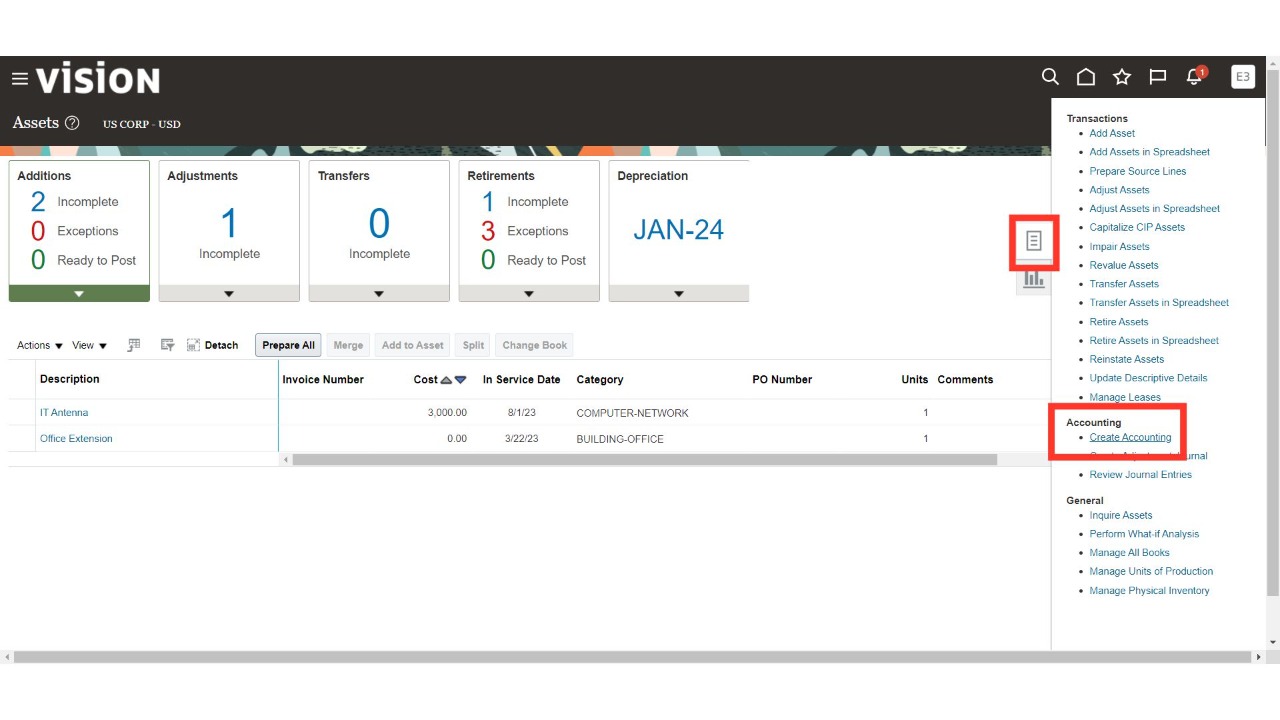
Run the ‘Create Accounting’ process from the Task list in the Fixed Asset Module to generate accounting entries for asset capitalization.
Enter the values in the provided parameters such as Book, Process Category, End Date and Accounting Mode.
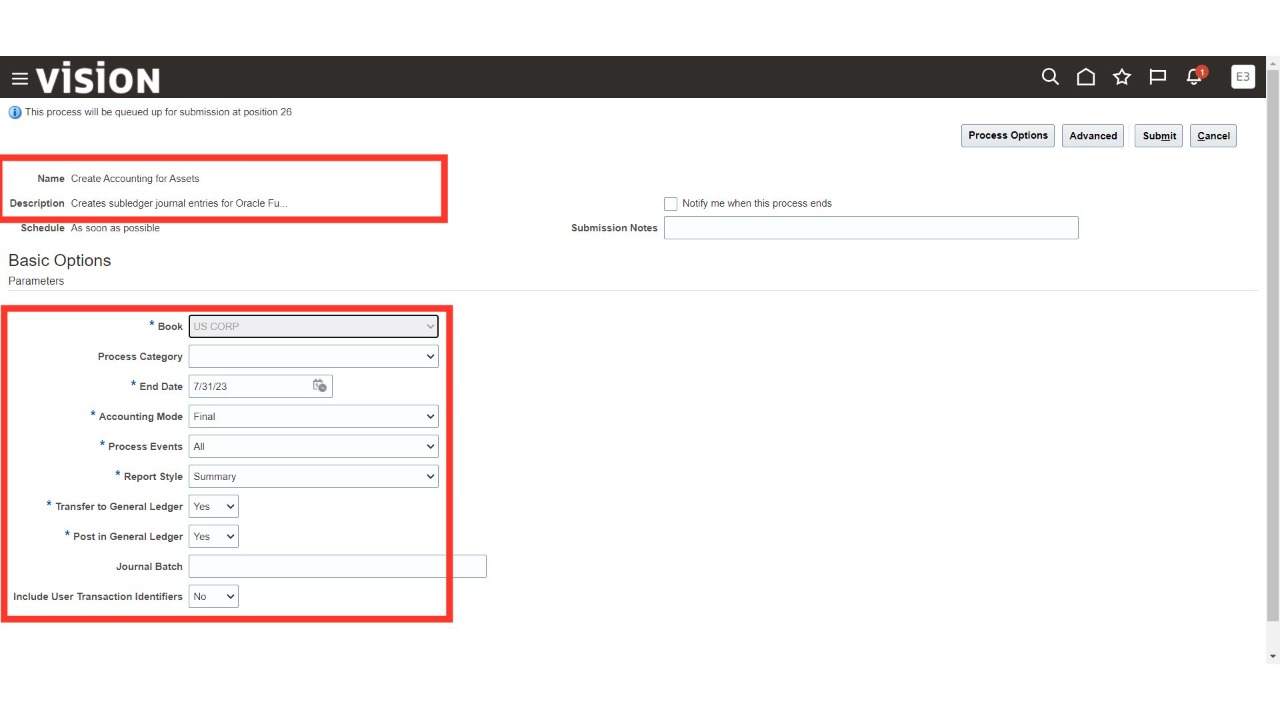
Review all the entered parameter values and click on 'Submit.'
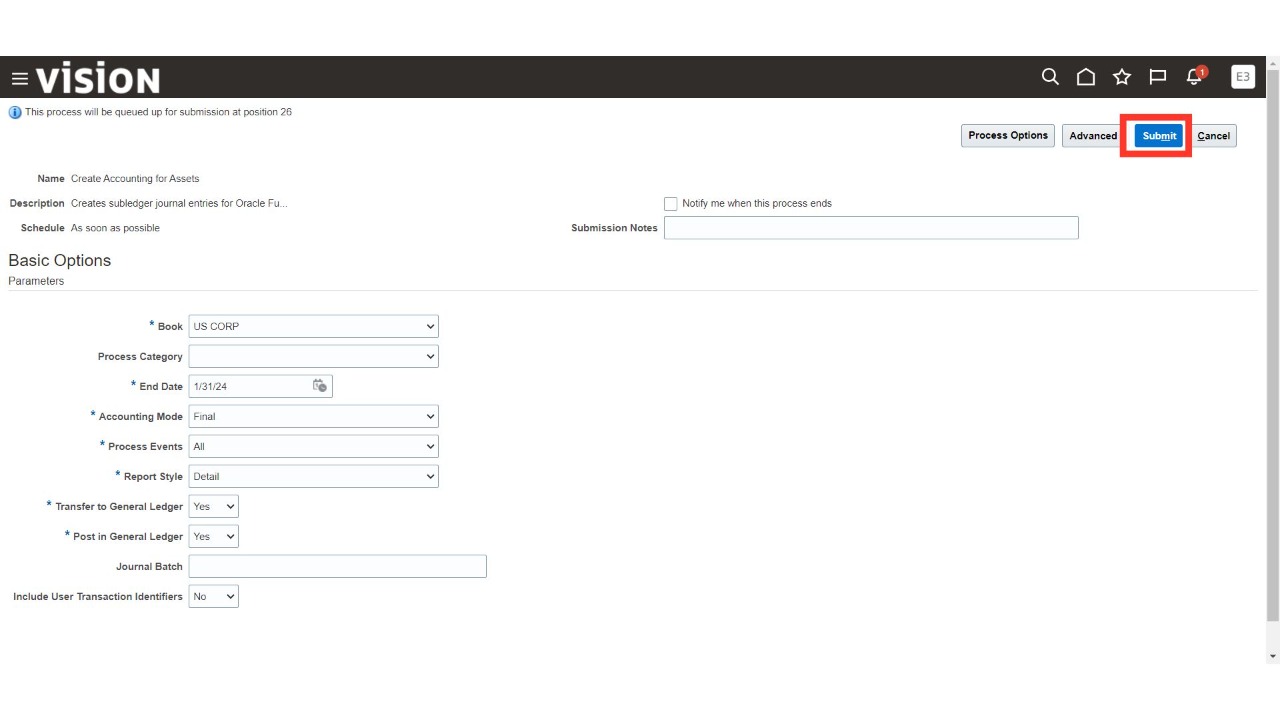
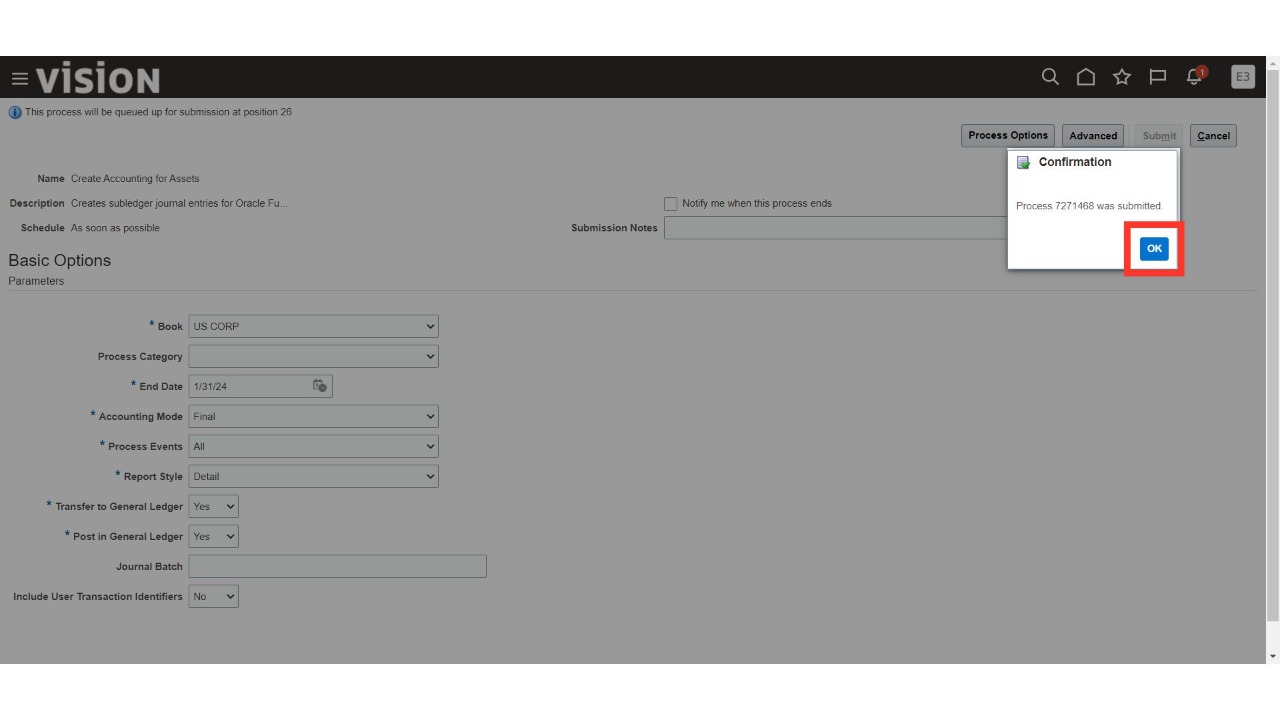
Oracle Cloud will display a confirmation message. Click on 'OK' to proceed. Once successful, navigate back to the Oracle Home page.
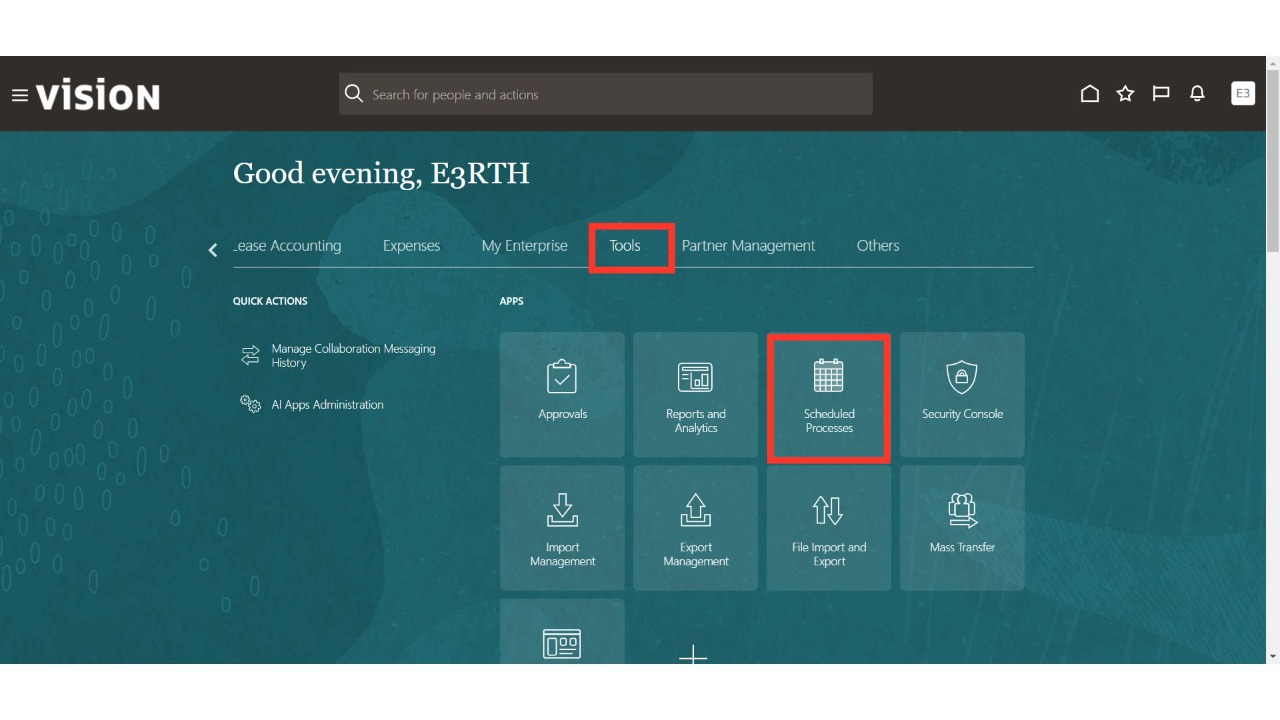
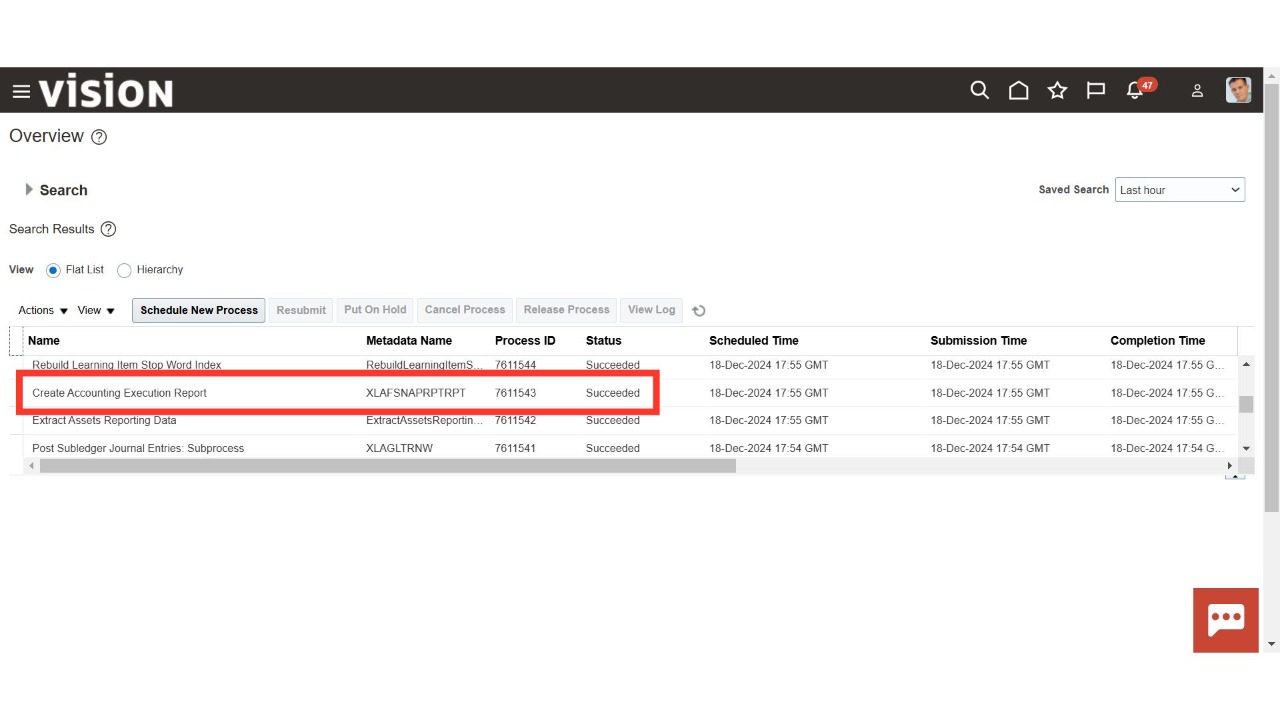
Click on the 'Schedule Processes' sub-menu under the 'Tools' menu to check the process status.
Keep clicking the ‘Refresh’ button until the process status shows as ‘Succeeded.’ Once successful, navigate back to the Oracle Home page.
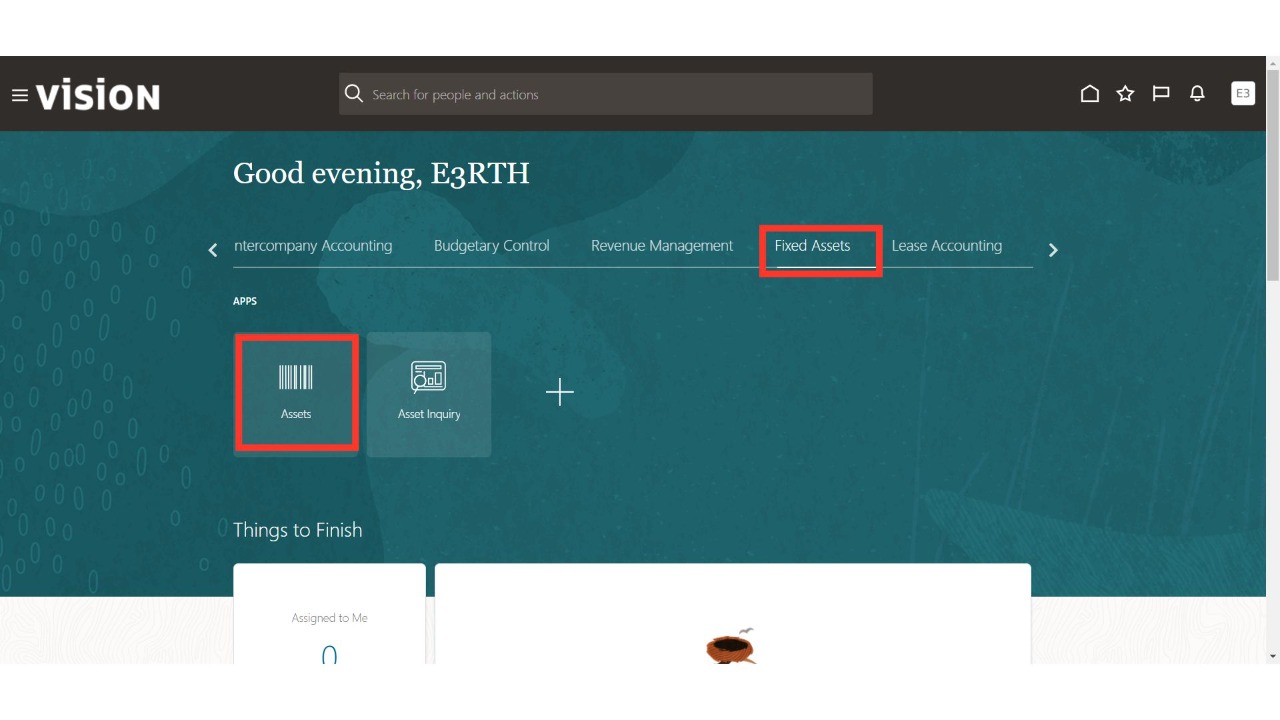
Click on the 'Assets' sub-menu under the 'Fixed Assets' menu from the Oracle Home page.
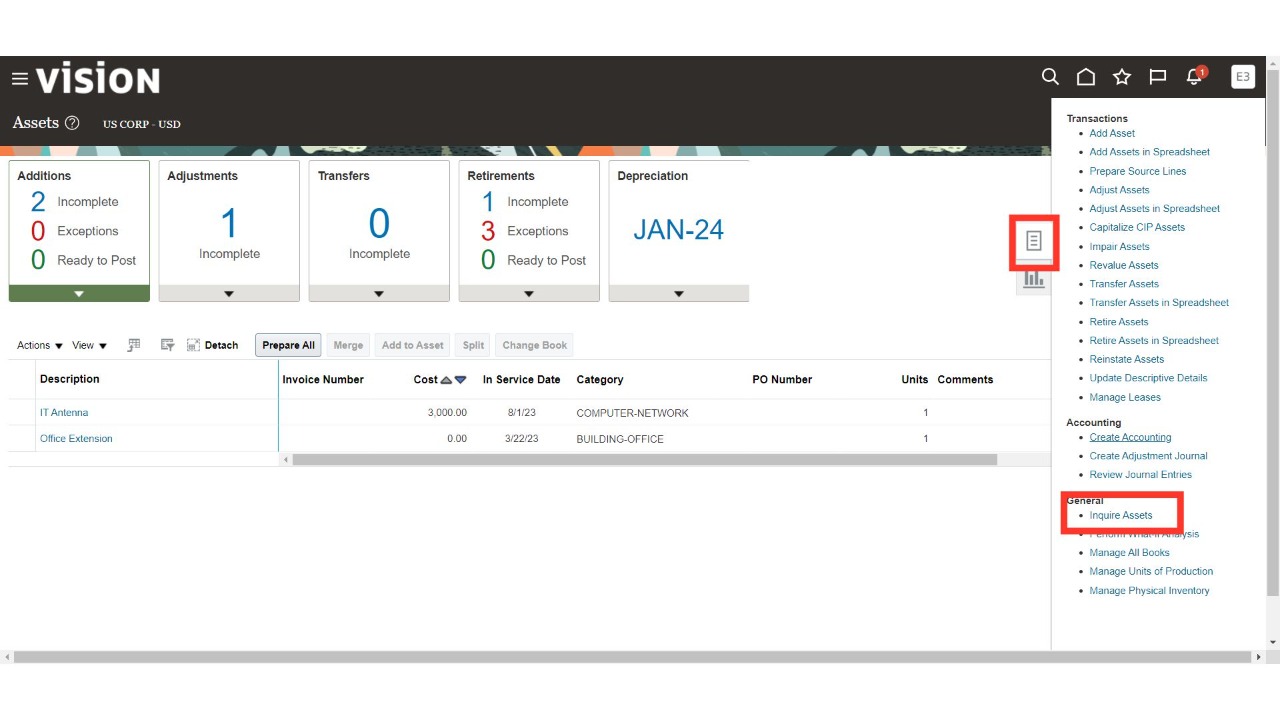
Select 'Inquire Assets' from the Task list.
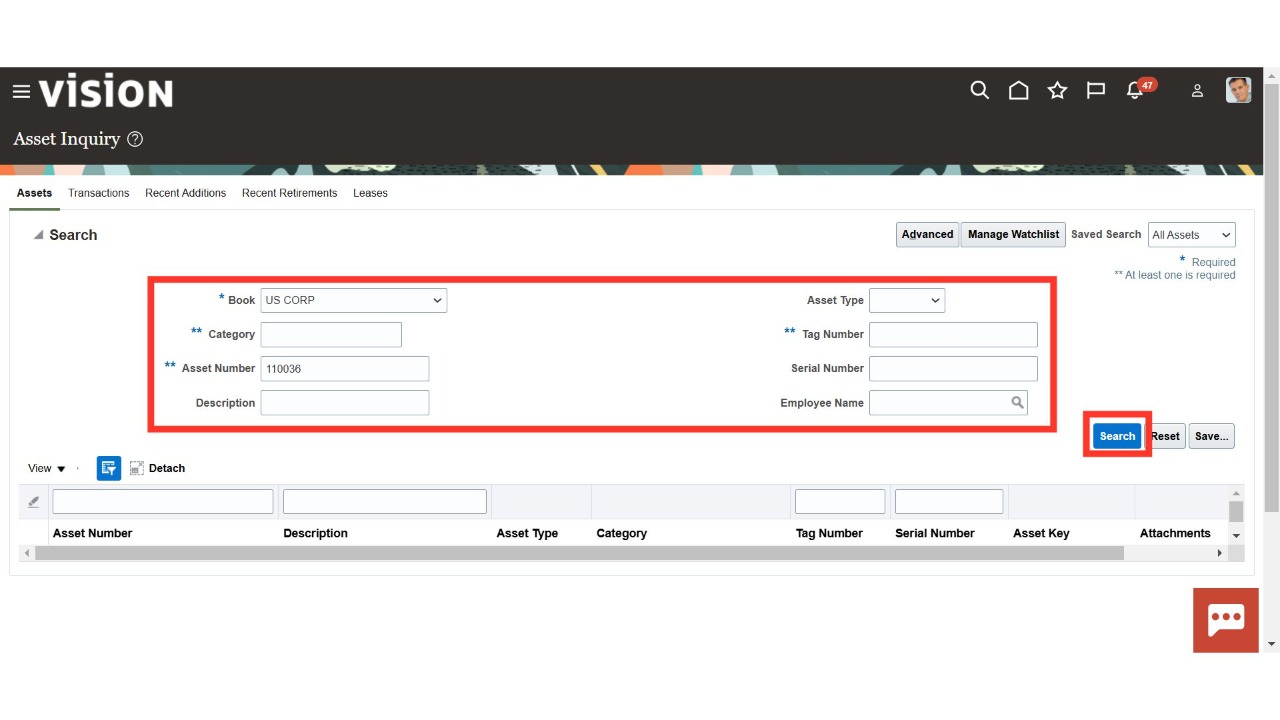
Enter the Asset Number or Category in the parameters and click on 'Search.'
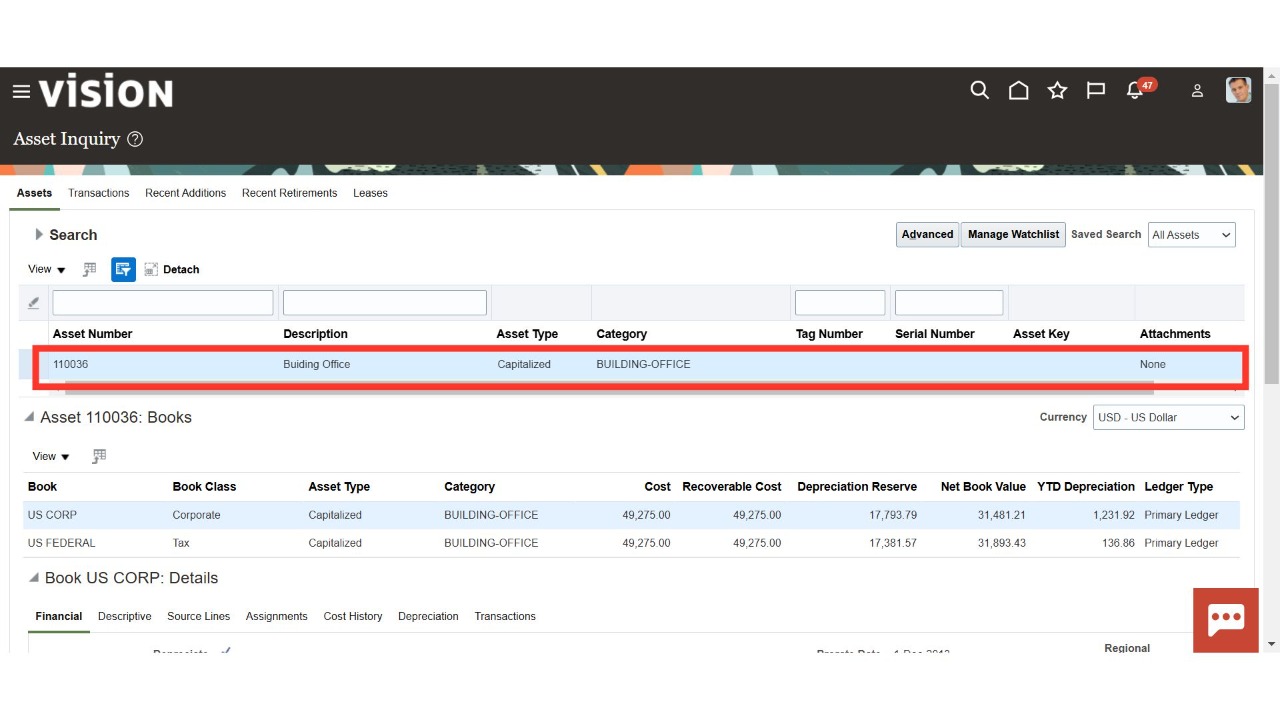
Review the capitalized assets to date and scroll down to see further details.
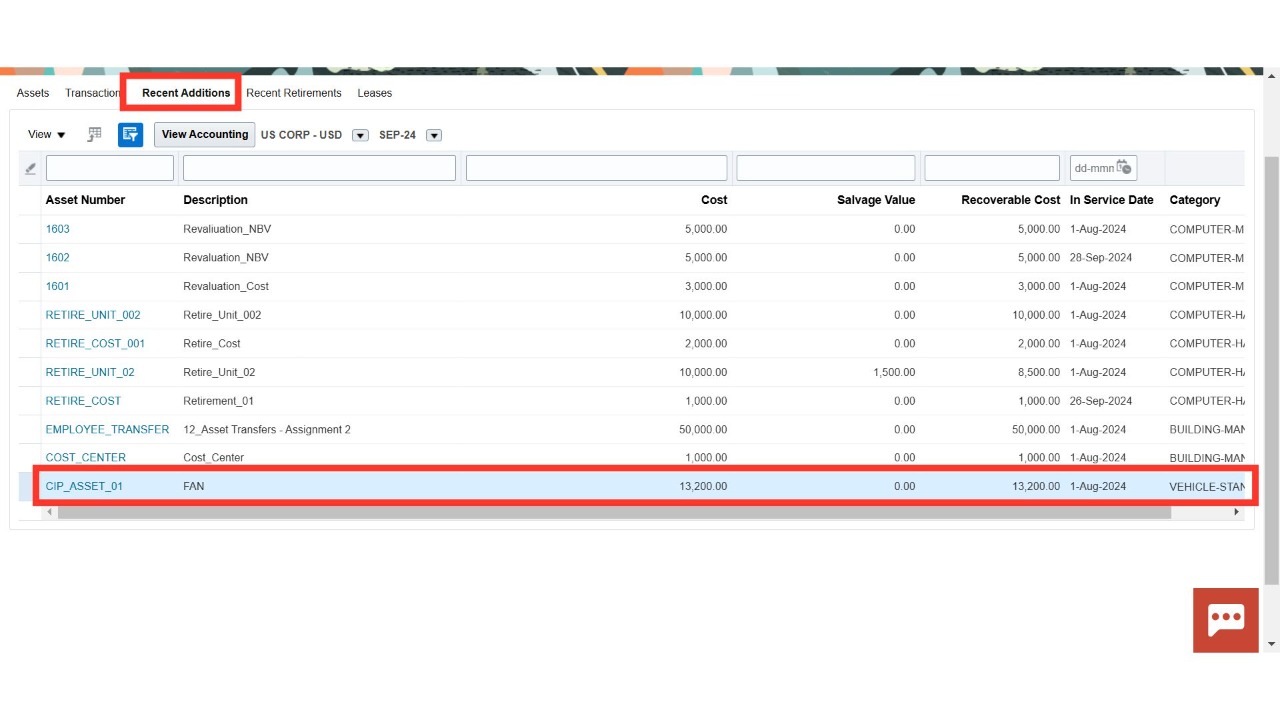
Click on 'Recent Additions' to validate the details of the recently capitalized assets.
Thank You.