Introduction
Efficient time card management in Oracle Cloud ensures accurate payroll processing and workforce tracking. This guide walks you through the process of reviewing, updating, and approving time cards for your team, ensuring a smooth approval process.
Blog for reviewing, updating, and approving time cards, providing clear and detailed instructions to ensure a smooth approval process.
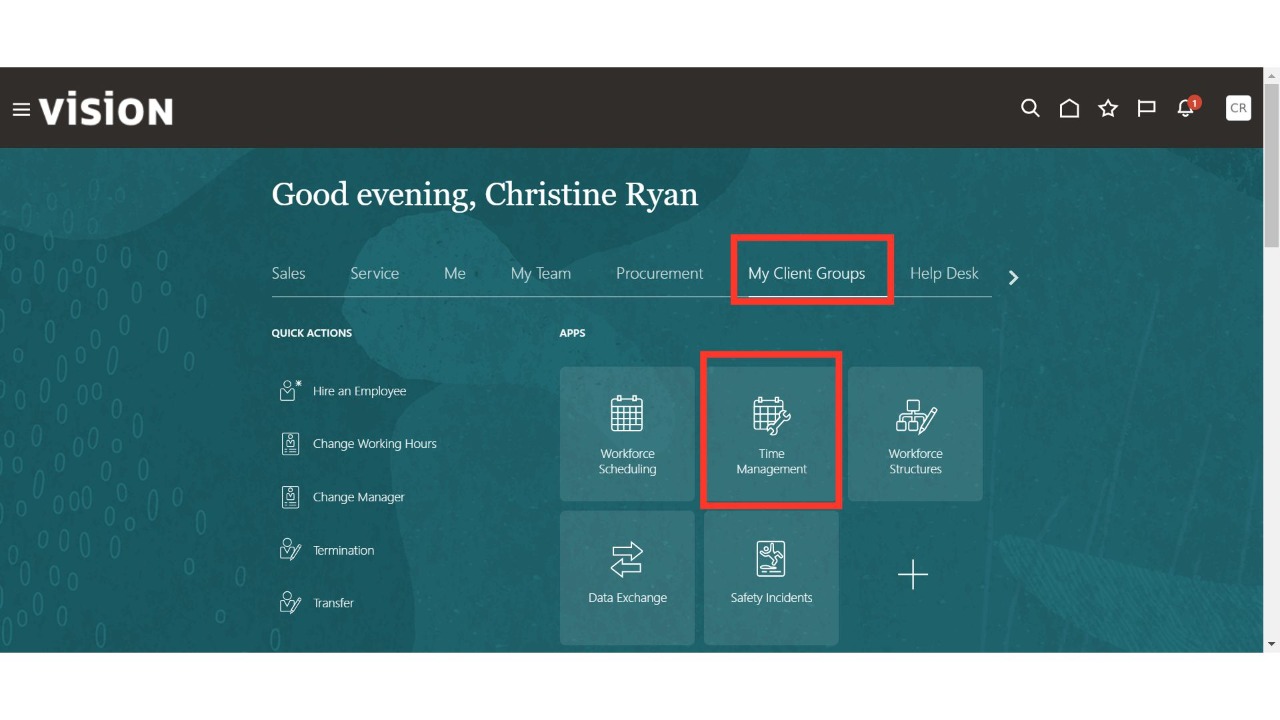
Navigate to the Time Management sub-menu available under the My Client Group menu on the Oracle home page.
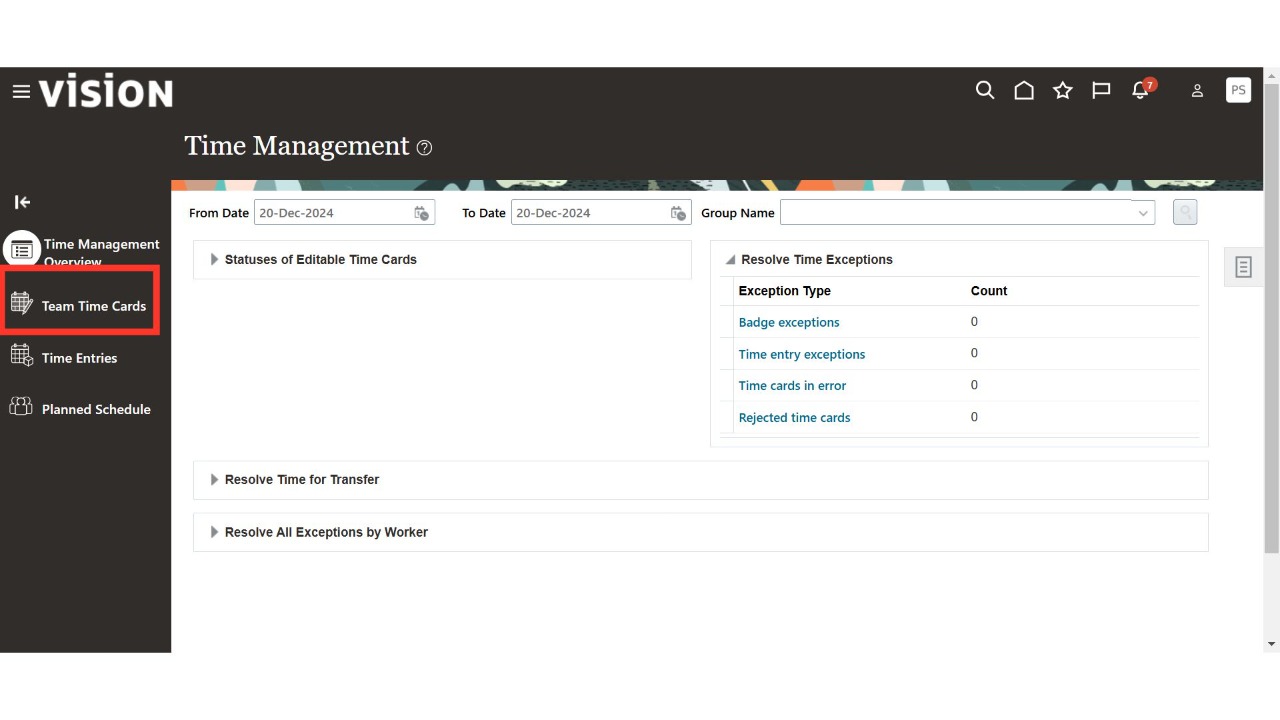
Click on the Team Time Cards section.
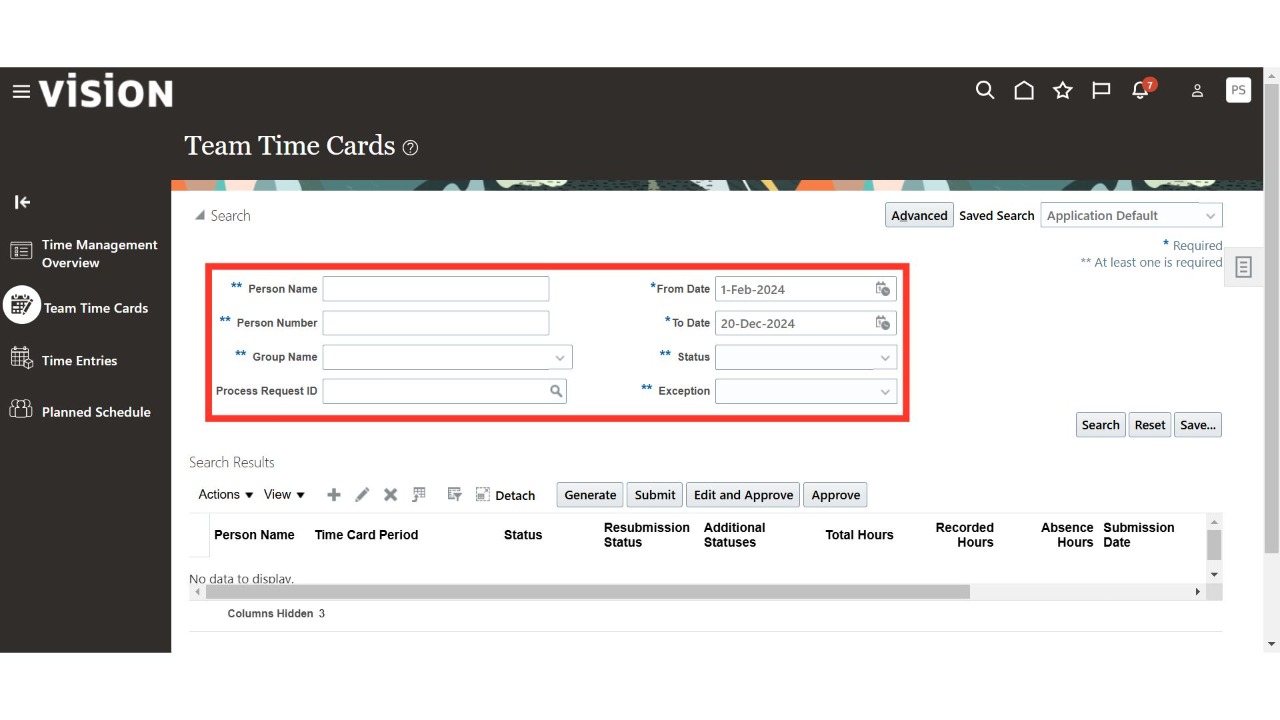
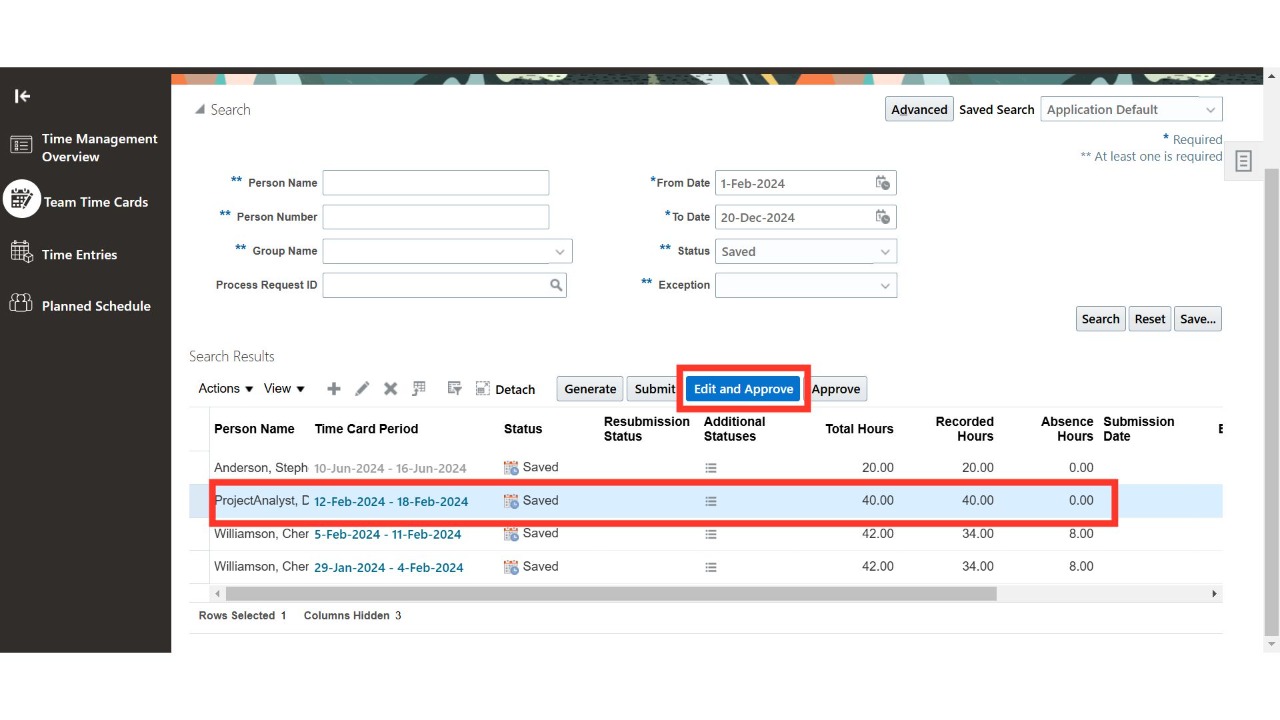
Search for your team’s time cards using various parameters such as Person Name, Person Number, From Date, To Date, and Status.
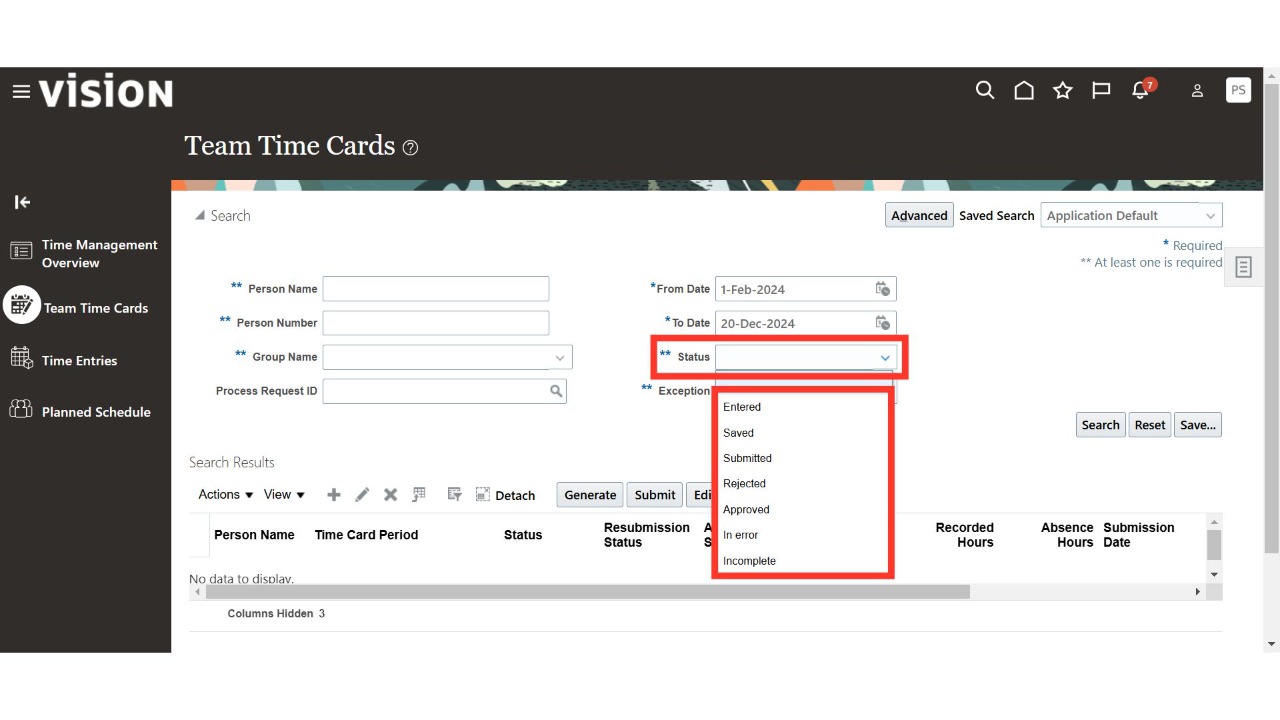
Enter the search criteria, such as the period or status (For Example Entered, Saved, Submitted), and click on Search.
Oracle Cloud displays the results based on the values provided in the search parameters. Select the relevant time card and click on Edit and Approve.
 Enter the number of hours the person worked for the projects and tasks on the corresponding days and dates, then click on Save.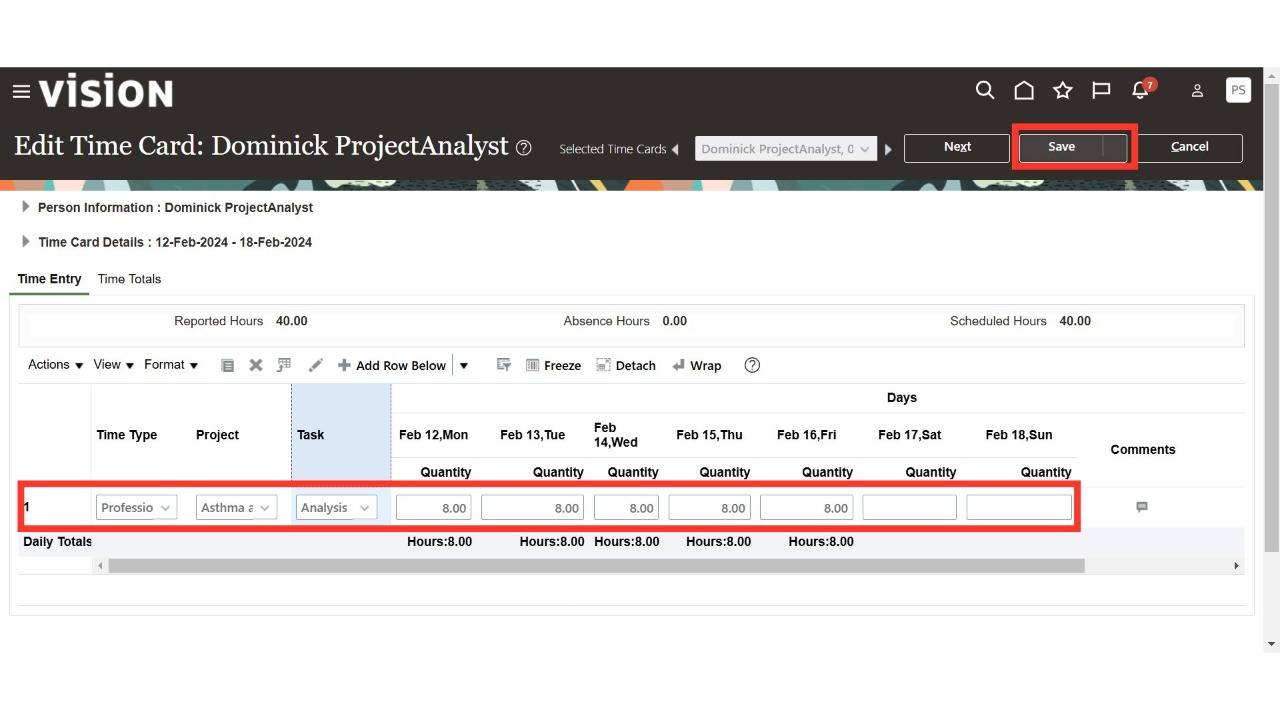
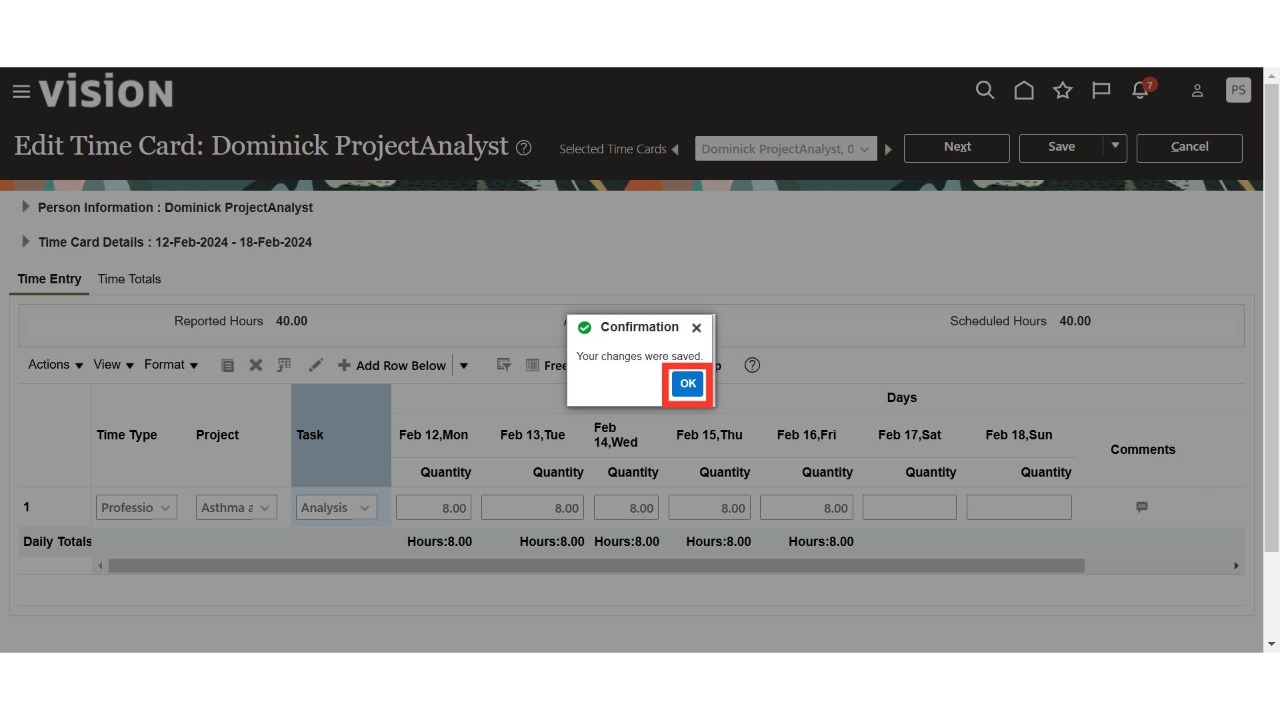
Oracle Cloud displays a confirmation message. Click on OK to proceed.
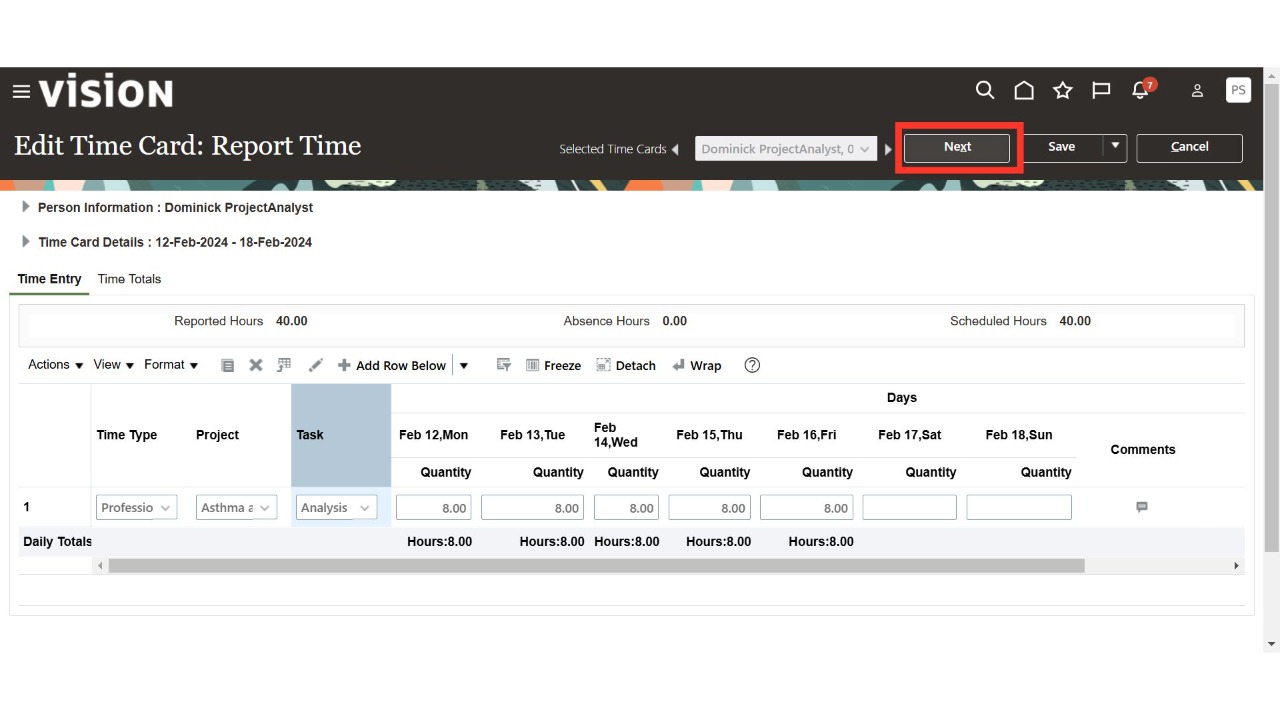
Once the team time card is edited and updated, click on Next to proceed.
Click on the Submit button to submit the time card for approval.
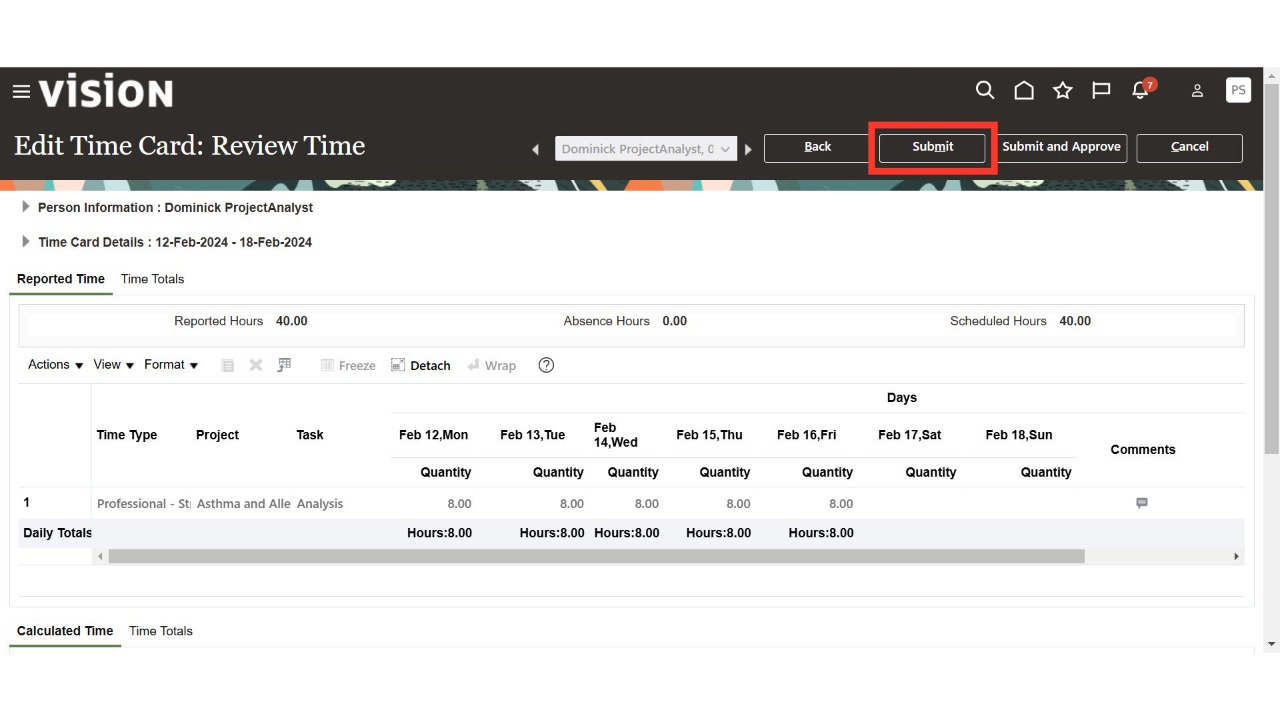
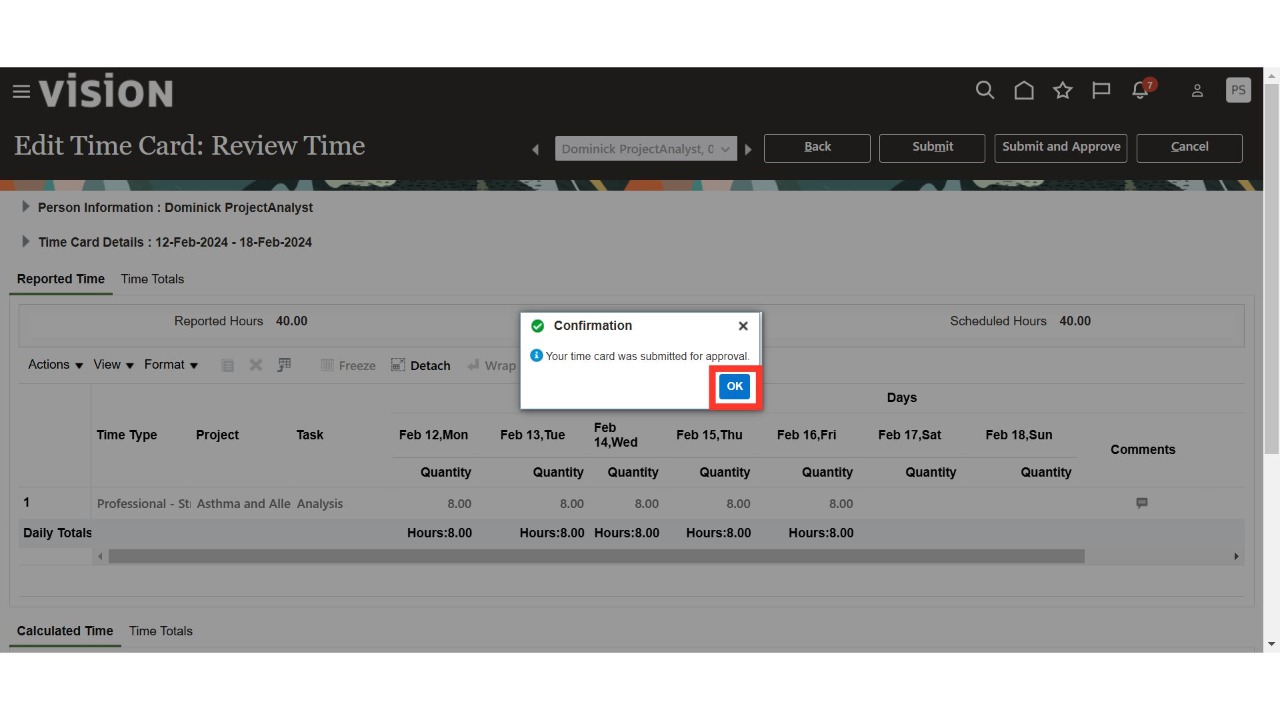
Oracle Cloud displays a confirmation message. Click on OK to proceed.
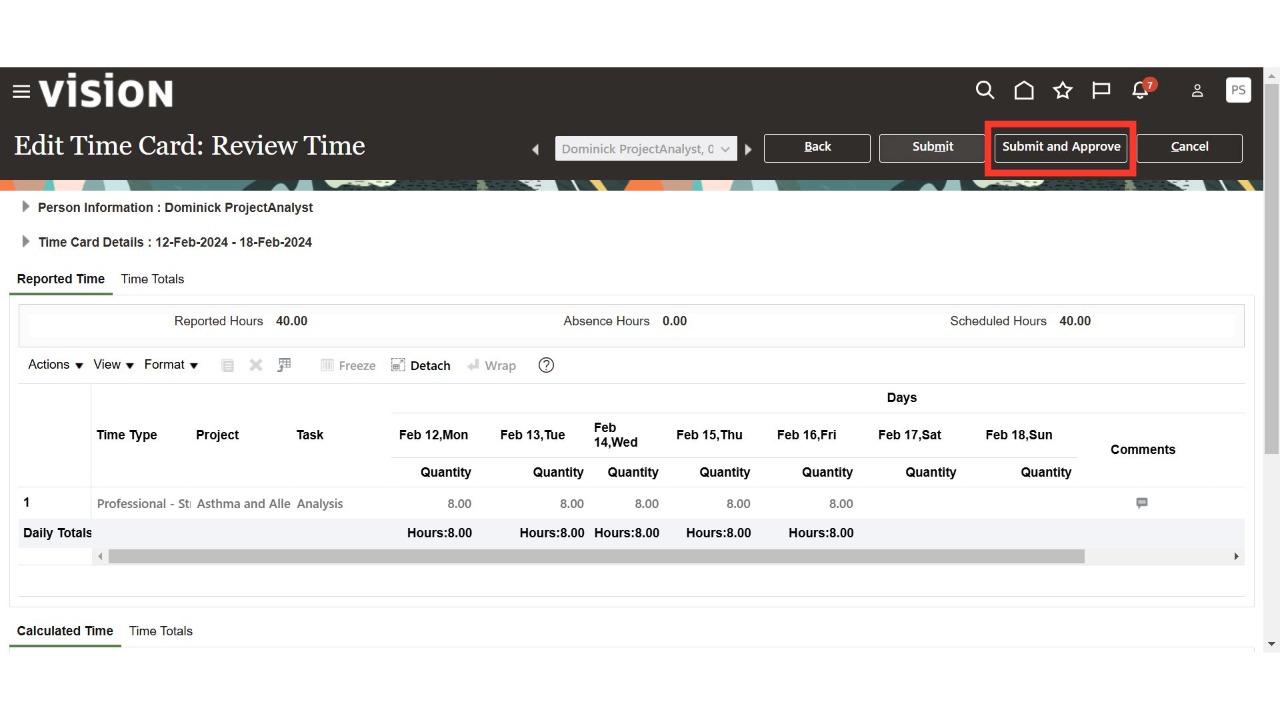
Alternatively, as the line manager, you can directly click on the Submit and Approve button to approve the time card.
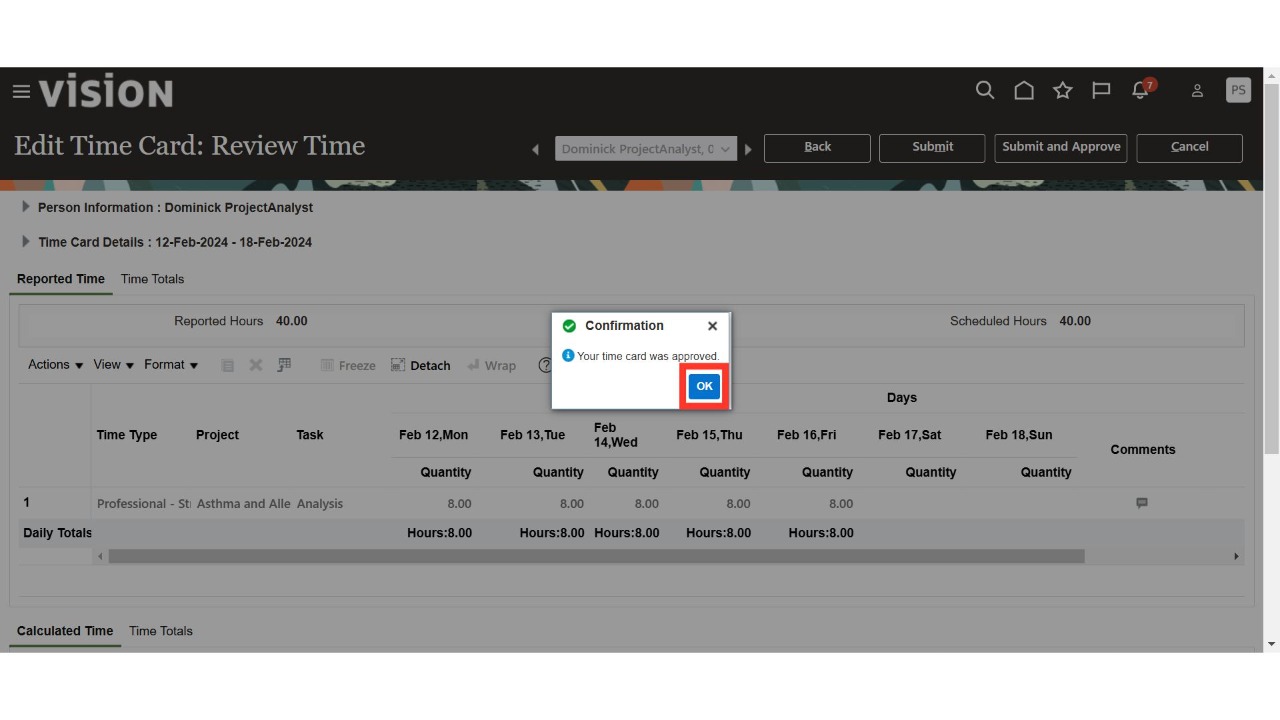
Oracle Cloud displays a confirmation message. Click on OK to complete the process.
Thank You.